
A map search lets you draw a custom area and find listings exactly where you want — great for targeting specific neighborhoods or areas that don’t follow standard boundaries.
Paragon Professional
Go to Search.
Select your Property Type.
Click Map Search at the top.
Choose one of the following:
Click Draw to draw a custom shape on the map, or
Enter an address in the search bar to center the map on a specific location, or
Enter the number of miles next to Search Radius to do a radius search. Click Search Radius to apply it.

Click Run Search at the top to view your results.
Tip: After running your search, click Save at the top if you’d like to use it again later.
Paragon Connect
Click the three lines in the upper-left corner and select Properties.
Select Near Me to open the map view.
On the right side of the screen:
Use the Drawing Tool to draw a custom area, or
Click the magnifying glass to search by address.
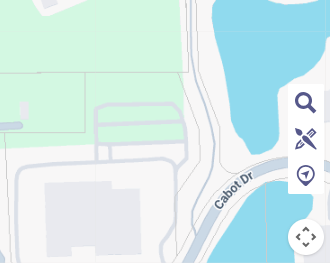
Click the Views icon in the upper-right and choose Thumbnail to view the results.
Tip: You can also click the Save icon in the upper-right to save the search for later.
Good to know
Saved map searches can be reused or refined at any time.
Need help? We’re here for you.
Phone/Text: (630) 955-2755
Email: help.desk@mredllc.com
Hours:
Mon–Fri: 8 AM–6 PM
Sat: 9 AM–3 PM
Sun & most holidays: 10 AM–2 PM (on call)
Was this article helpful?
That’s Great!
Thank you for your feedback
Sorry! We couldn't be helpful
Thank you for your feedback
Feedback sent
We appreciate your effort and will try to fix the article